View your recorder and cameras on the go. With Dahua's mobile application IDMSS(IOS)/GDMSS(Android) allows you to add Dahua recorders and cameras to the mobile app using P2P.
Prerequisites
Smartphone (IOS device or Android)
IDMSS/GDMSS already downloaded in your mobile device.
P2P must be turned on from the recorder and connected to a network with internet access.
Step by Step Instructions IDMSS/GDMSS version 4.20.000
1. Select the Menu Icon
2. Select "Device Manager"
3. Select the Add Icon
4. Select "Camera"
5. Select "Wired Device"
6. Select "P2P"
7. Input Info and select "Start Live Preview"
Name: (nickname)
SN (serial number, you can either scan the QRcode or type the SN manually)
If you lost the password for the Dahua NVR it's necessary to execute a reset procedure to recover it. In this article, I will show how to reset Dahua NVR password by using a simple step-by-step process. Keep reading.
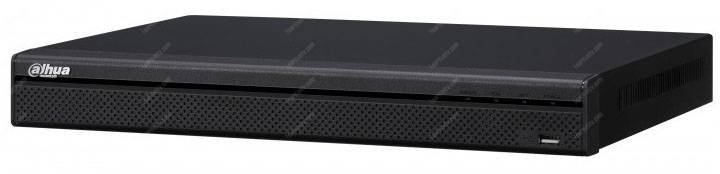
The password reset was tested in a Dahua NVR model DHI-NVR-5208-8P-4KS2as show in the picture. You can use the same procedure with similar NVRs.
The quick way to reset the Dahua NVR is by using a QR Code scan procedure or by answering some security questions (previously configured).
Just follow one of the procedures to recover the NVR password.
NVR password login screen
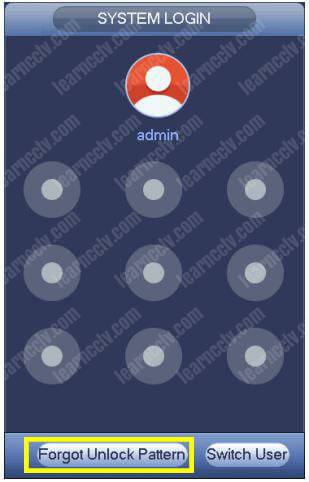
The Dahua NVR allows you to choose different ways to login into the device. One of them is through the unlock pattern where you need to draw a line in the correct sequence. If you don't know such pattern, you have to reset the NVR password.
To recover the password just click on "Forgot Unlock Pattern" to see the password login interface. Follow the steps described in the section.
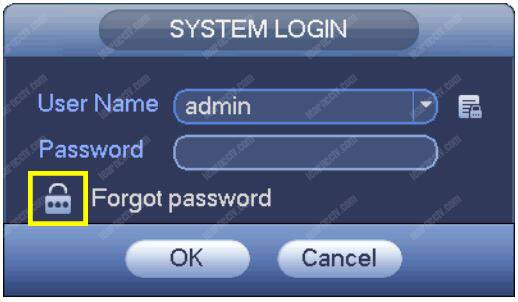
If you are not using the unlock pattern, the System Login screen will ask you for the password, just click the icon close to "Forgot Password" and follow the steps described in the section.
How to reset the NVR password
There are two different ways to reset the Dahua NVR password:
1. Scan a QR code and reset by email
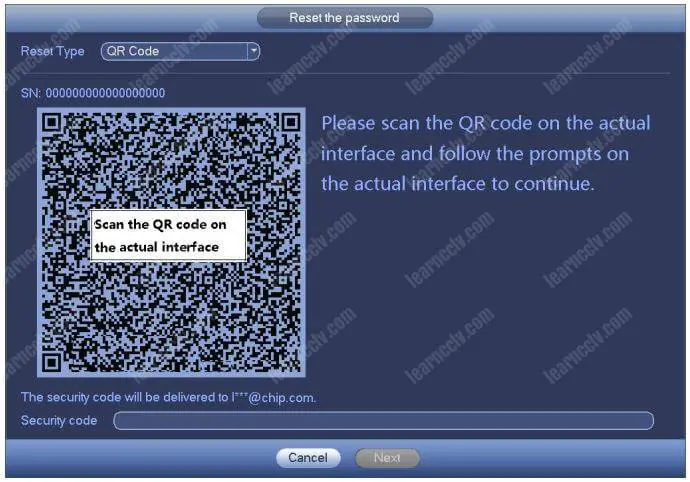
Using your mobile, download an app such as the QR Code Reader, Easy4ip or the QR code BarcodeScanner to read the barcode presented by the NVR.
The following picture shows an example of the NVR barcode, just open the app in your mobile and point the camera to it.
Just follow the instructions and check your email to get a security code you need to unlock the NVR. This code is valid for 24 hours.
2. Answering a series of security questions
You need to answer 3 security questions that were configured in the NVR during the installation process. Just follow the simple steps.
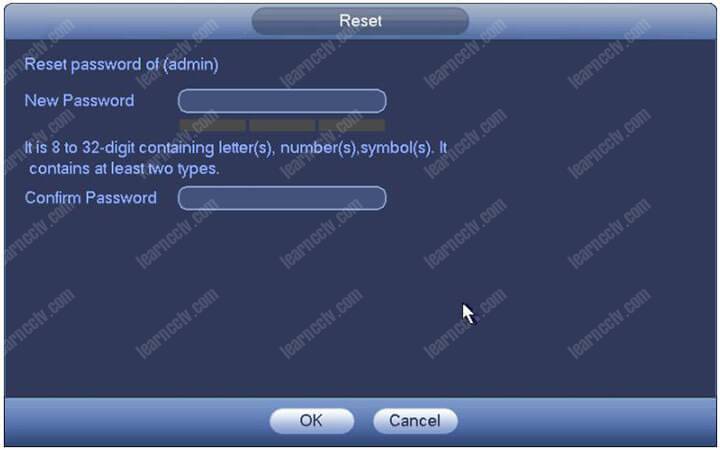
After answering the security questions, click the "Next" button to go to the next screen and create your new password (see the picture below).
Make sure to create a strong password with a minimum of 8 digits with letters, symbols, and numbers, so it will be accepted by the NVR.
If you lost the password and can't have access to your DVR, here you can find different methods to recover your device to use the Dahua default password. All depends on the model you have, perhaps the solution for your problem it's right here, just keep reading...
To reset a Dahua DVR and recover the admin password, you just need to either use a reset button located on the motherboard, try a default password or use a software to generate a new password based on the device date.
Let's talk about the different methods so you can try to use the one that best suits your needs according to your Dahua DVR model.
Method number 1 - Using the reset button
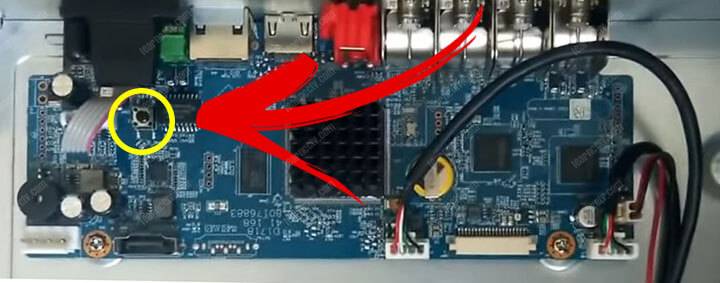
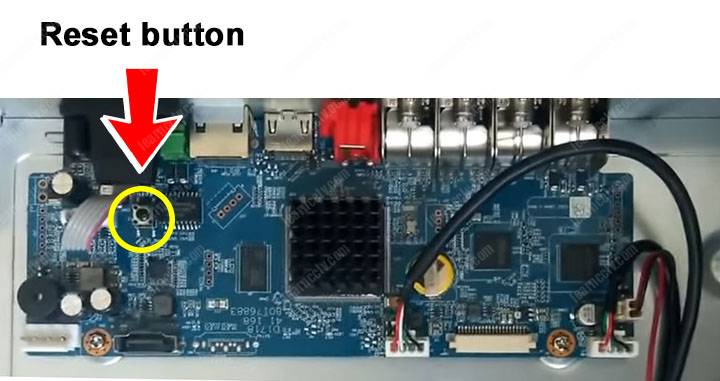
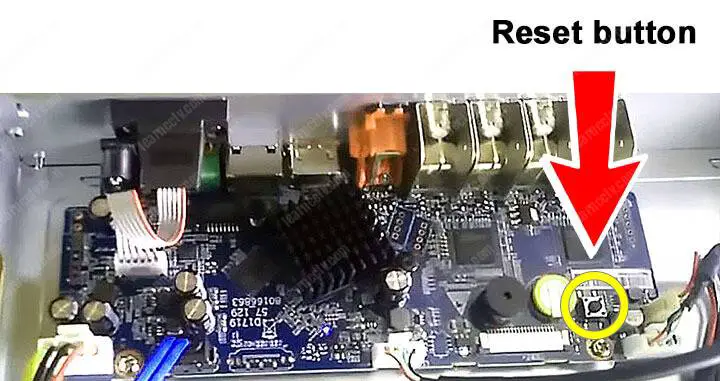
This method will depend on the DVR you have, some of them come with a reset button that is located on the motherboard. you just need to open your device to check if that's your case. See the following pictures that show such button.
Note that in this DVR model there's a yellow battery at the right side and a reset button located at the opposite (right) side of the motherboard.
In this model, the yellow battery and the reset button are located at the right side of the motherboard, pretty close of each other.
The password reset procedure
To reset the DVR to factory default just follow the steps:
Features: EZTools is a tool kit for device search and upgrade, remote configuration, recording time and capacity calculation. ● Device Management: 1. Device search and upgrade; 2. Remote configuration of device parameters;
● Capacity Calculation: 1. Calculate the allowed recording time based on the given disk space; 2. Calculate the required disk space based on the given recording time. Download the software click link :
K-Lite Codec Pack 11 Mega is a useful tool which will bring everything that your computer require for playing online as well as offline multimedia files. The comprehensive pack includes everything that a user could ever imagine.
K-Lite Codec Pack 11 Mega includes codes for Quicktime and RealPlayer which means you can play Quicktime and real media files easily. It includes Media Player Classic which is a comprehensive player that can play almost all media formats. Installation of K-Lite Codec Pack 11 Mega can be a bit tricky for the novices as all the formats and those names may be something new for them but if you are planning to just playing videos then default setting will be ideal for you. It gives all the users power to configure different functionality settings for installed components. You can also use VLC Media Player which is a great alternative and contains all codecs.
All in all K-Lite Codec Pack 11 Mega is a comprehensive package which includes all the popular codecs for playback and encoding.
Features of K-Lite Codec Pack 11 Mega
Below are some noticeable features which you’ll experience after K-Lite Codec Pack 11 Mega free download.
Comprehensive application which will allow you to play almost all type of media content.
Includes codecs for Quicktime and RealPlayer.
Gives you the power to configure different functionality settings for installed components.
Includes updated Media Player Classic.
Supports almost all media file formats.
Setup File Name: K-Lite_Codec_Pack_1110_Mega.exe
Full Setup Size: 38 MB
Setup Type: Offline Installer / Full Standalone Setup
Compatibility Architecture: 32 Bit (x86) / 64 Bit (x64)
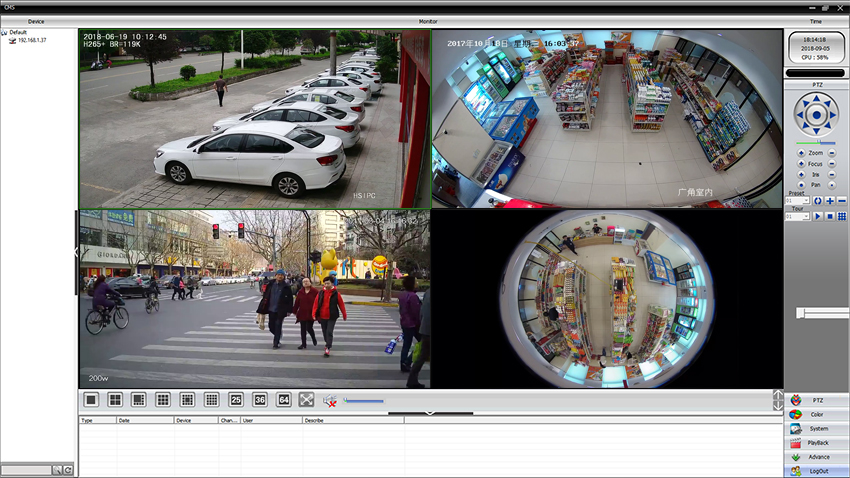
TOP FREE VIDEO SURVEILLANCE CMS FOR DVRS/NVRS/IP CAMERAS
CMS is acronym of central monitoring station or central monitoring software. CMS software provides a centralized monitoring solution, allowing users to manage all video surveillance devices from one computer. Today our editor highly recommends you a most popular CMS software which offers robust functions, while have a great compatibility.


 2. Select "Device Manager"
 3. Select the Add Icon
 4. Select "Camera"
 5. Select "Wired Device"
 6. Select "P2P"
 7. Input Info and select "Start Live Preview"